
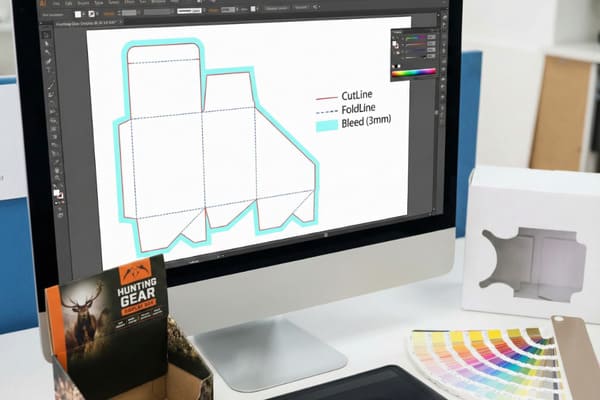
Beautiful designs often fail the "steel press test." I see projects stalled weekly because artwork ignores structural physics. Here is the strict workflow to ensure your files are production-ready.
To prepare dielines for prepress and printing, designers must follow a strict file preparation workflow:
Isolate the structural path on a separate "Die" layer.
Assign a unique Spot Color (e.g., "Die Line") to all cut paths.
Set all structural lines to "Overprint Stroke" to prevent white gaps.
Extend background artwork bleed by 0.125 inches (3mm) beyond the cut.
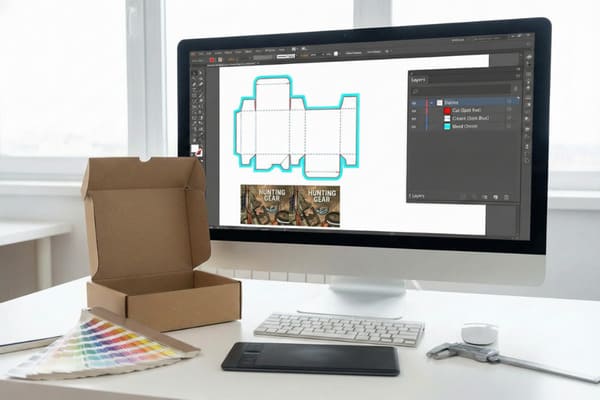
If you skip these steps, the knife hits the wrong spot, or we have to stop the press to fix white registration gaps.
How to set up dieline?
Don't start drawing lines in Illustrator blindly. You are creating a blueprint for a steel tool, not a vector illustration.
To set up a dieline correctly in vector design software, operators must organize the file structure using this hierarchy:
Create a new layer named "Die" or "Cutter" and lock it.
Select a high-contrast Spot Color (e.g., 100% Magenta) for the path.
Differentiate line styles using Solid lines for Cuts and Dashed lines for Scores.
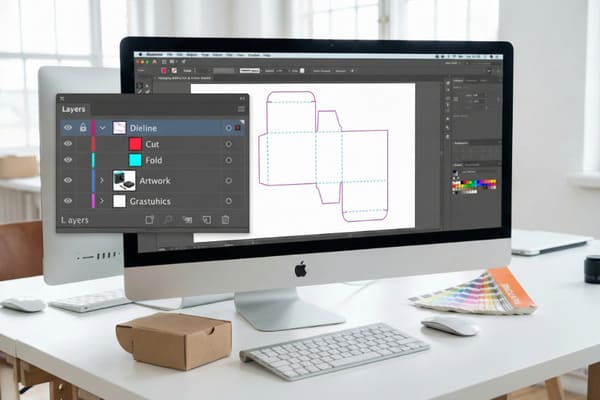
The Structural Anatomy of a Production-Ready Dieline
Let's be honest about the "messy" reality of manufacturing. I often receive files where a designer has manually drawn a rectangle in Adobe Illustrator and labeled it "Box." That isn't a box; that's a mistake waiting to happen. A proper dieline setup isn't just about drawing lines; it's about translating a physical 3D object into a 2D map that a Kongsberg cutting table or a steel die-cutter can interpret.
The biggest friction point I face is the "ArtiosCAD vs. Illustrator1" disconnect. My structural engineers work in ArtiosCAD, which calculates the physics of the fold—accounting for the material thickness (e.g., B-flute is 1/8 inch or 3mm thick). When we fold that board, the paper stretches. If a designer creates a dieline in Illustrator without accounting for these "folding allowances," the final box will bulge, crack, or simply won't close.
I learned this the hard way years ago with a client launching a cosmetic display. They insisted on using their own "custom" dieline drawn by a graphic designer. We went to print. The result? The tuck flaps were too short because they didn't account for the roll-over thickness of the corrugated board. We had to scrap 500 units. Now, I insist on the "Empty Canvas" protocol. I provide the mathematically perfect dieline template (saved as a native AI file) before you even open your software. Your job is to drop the artwork onto it, not to alter the structure. We also need to respect the "Grain Direction2"—if you rotate the dieline to fit a print sheet, you might accidentally align the grain horizontally, destroying the stacking strength.
| Feature | Professional Dieline Setup | Amateur/Incorrect Setup |
|---|---|---|
| File Origin | Exported from CAD (ArtiosCAD) | Drawn manually in Illustrator |
| Layering | "Die" layer is separate & locked | "Die" line mixed with Artwork |
| Line Attribute | Spot Color (Custom named) | CMYK Black (Standard) |
| Fold Allowance | Calculated for Board Thickness | Zero allowance (Geometric lines) |
| Risk Level | Zero (Guaranteed Fit) | High (Buckling/Tearing) |
My advice is simple: Don't guess the geometry. I have an entire database of retailer-compliant templates. If you are designing for a Costco pallet or a Walmart PDQ, ask me for the file. I've already done the math to ensure it fits the pallet grid and holds the weight. You just need to make it look pretty.
What is a dieline in printing?
It is the difference between a digital picture and a physical product. Without it, we are just printing posters.
A dieline in printing is a flat 2D vector template that acts as a blueprint for the cutting die. It indicates precisely where the machine should cut, crease, or perforate the material, separating the structural layout from the graphic artwork.
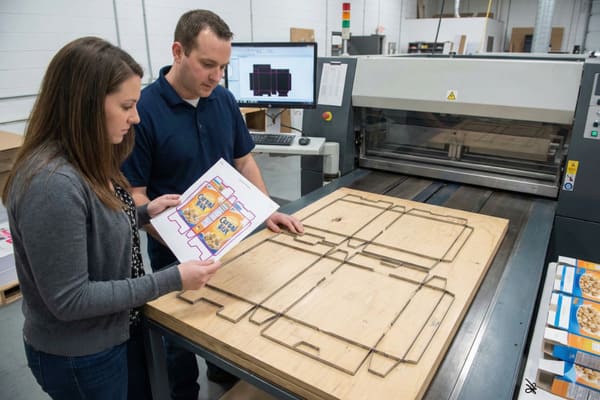
Beyond the Blue Line: The Knife Mold Reality
When you see a red or blue line on your screen, you see a "stroke." When I see that line, I see a piece of steel. A dieline3 is literally the instruction manual for bending metal. In the factory, we take your vector file and laser-cut a wooden board (the die board). Then, skilled workers hammer razor-sharp steel rules into those laser-cut slots. This is why precision is non-negotiable. If your line is "fuzzy" or consists of pixels instead of a vector path, the laser cutter can't read it, and we can't build the tool.
There are three main languages we speak in a dieline:
- Cut Lines: Usually represented by a solid line. This tells the machine to push the blade all the way through the corrugated board.
- Crease (Score) Lines: Usually a dashed or distinct colored line. This uses a blunt, round-edged rule that crushes the flute without cutting the liner, allowing the board to fold neatly.
- Perforation/Nick Lines: A pattern of cut-and-gap. This is crucial for "tear-away" headers or retail-ready packaging.
I often have to correct designers who treat perforation lines4 as a "style choice." It's a physics choice. If the "nicking ratio" (the gap between cuts) is too weak, the box pops open in the shipping truck (vibration failure). If it's too strong, the store clerk at Walmart can't tear it open and ends up using a box cutter, often damaging your product inside. We use specific "Safety Edge" blades for hand-access areas to prevent paper cuts—something a simple Illustrator line doesn't show, but my production team knows is vital. We also have to manage the "Fresh Tooling5" reality. Wooden die boards warp with humidity. If we re-use an old dieline without checking against the new board, the registration will be off.
| Line Type | Visual Standard (Typical) | Physical Tool | Function |
|---|---|---|---|
| Cut Line | Solid Red/Black Line | Razor Steel Blade | Separates part from sheet |
| Crease Line | Dashed/Green Line | Blunt Round Rule | Crushes flute for folding |
| Perforation | Dotted Line | Notched Blade | Allows manual tearing |
| Bleed Line | Guide outside Cut Line | N/A (Print only) | Safety margin for ink |
Understanding this physical link is why I treat the dieline as a contract. Once you sign off on that PDF, we bend metal. Changing a fold line by 1/8 inch (3mm) after the die is made costs hundreds of dollars in re-tooling fees.
What file format is preferred for a dieline template?
Send me a JPG, and I will send it back. Pixels are useless for structural engineering.
The file format preferred for a dieline template includes vector-based standards that preserve structural layers:
Native AI (Adobe Illustrator) for design flexibility and layer control.
Vector PDF (Portable Document Format) for universal compatibility.
EPS (Encapsulated PostScript) for legacy system support.
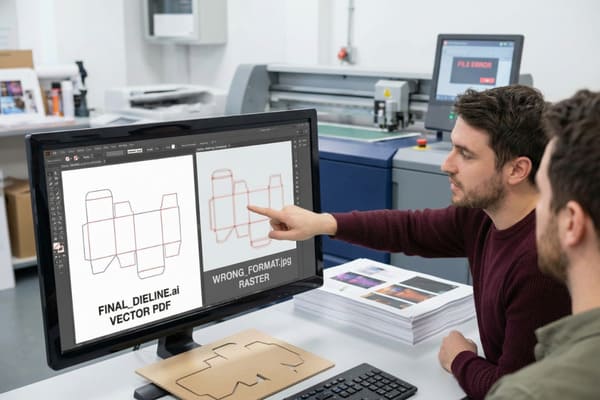
The Vector Standard: Why Pixels Are Poison
In the high-stakes world of retail packaging, we rely on "Vector" data. This means the lines are defined by mathematical formulas (points and paths), not by a grid of colored pixels. A JPG or PNG is a raster image—it's just a photo of a line. If I zoom in, it gets blurry. You cannot tell a CNC machine to follow a blurry edge.
We use an ecosystem that revolves around ArtiosCAD and Adobe Illustrator. When I send you a "Standardized Dieline Template," it is usually an .ai file or a layered .pdf. Why? Because these formats allow us to separate the "Structure" from the "Art." When you send the file back to me for production, I need to be able to turn off your artwork layer and just see the cut lines to drive my Kongsberg cutting table for the prototype.
I've had projects delayed by days because a brand sent a flattened PDF where the dieline was merged with the graphics. We couldn't isolate the knife path without destroying the image. We had to pay a prepress operator to manually redraw the entire structure—introducing a huge risk of human error. Furthermore, proper vector files allow me to provide you with a "Video Rendering." Using ArtiosCAD and Keyshot, I can take your flat .ai file and fold it virtually into a 4K 3D video. You can see exactly how your graphics align across the folds. If you send me a raster file, I can't give you that virtual approval, and we are stuck waiting for a physical sample to fly across the ocean.
| File Format | Suitability for Dielines | Why? |
|---|---|---|
| .AI (Native)6 | Excellent | Preserves layers, spot colors, vectors. |
| .PDF (Vector)7 | Excellent | Universal, supports layers & transparency. |
| .EPS | Good | Reliable vector, but lacks modern layer support. |
| .JPG / .PNG | Fail | Raster pixels. Cannot be used for cutting. |
| .INDD | Poor | InDesign is for books, not structural packaging. |
Ideally, just use the file I sent you. Don't export it, convert it, or "flatten" it to save space. We have plenty of storage. We need the raw data.
How to set dielines to overprint?
This is the single most common technical error that ruins print runs. It creates the "White Gap."
To set dielines to overprint and prevent white registration gaps, prepress operators must apply specific print attributes to the structural paths:
Select all vector strokes located on the designated "Die" layer.
Access the "Attributes" or "Output" panel within the design software.
Enable the "Overprint Stroke" checkbox to ensure ink continuity underneath the cut.
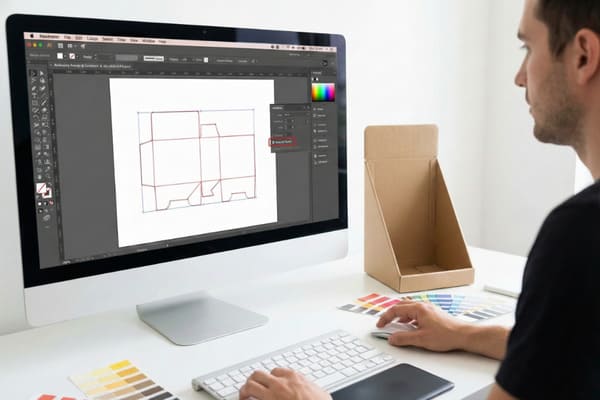
The "Knockout8" Error and the White Gap Phenomenon
Here is the physics of the problem: In printing software, the default behavior for any colored object is "Knockout." This means if you place a red circle on top of a blue background, the software deletes the blue ink underneath the red circle so the colors don't mix.
Now, apply this to a dieline. If your dieline is a 1-point stroke and it is set to "Knockout," the software deletes the background artwork directly underneath that thin line. You end up with a hairline of unprinted white paper right where the cut needs to happen.
"But Harvey, the knife will cut that line away, right?"
In a perfect world, yes. But in the messy reality of manufacturing, we have "Mechanical Tolerance." The die-cutting machine might shift by 0.5mm (0.02 inches) due to vibration or board expansion. If the knife shifts just a tiny bit, it misses that white hairline. The result? Your beautiful full-color display has an ugly, jagged white line running along every edge. It looks cheap. It looks like a mistake.
By setting the dieline to "Overprint9," you tell the software: "Print the background artwork underneath this line as if the line isn't there." This ensures continuous color coverage. Even if the knife shifts slightly, it is cutting through solid ink, not a white gap. We run a specific Preflight Check using PitStop Pro to catch this, but it saves us both a heart attack if you set it right from the start. It's similar to how we handle Spot UV—we need "trapping" (overlap) to account for movement. Overprinting is your insurance policy against mechanical reality.
| Setting | Printing Behavior | Result if Die Shifts |
|---|---|---|
| Knockout (Default) | Erases artwork under the line | Ugly White Hairlines on edges |
| Overprint (Correct) | Prints artwork under the line | Clean, continuous color on edges |
I've had to stop the press because of this. It's a 5-second click in Illustrator that saves thousands of dollars in rejected product. Please, check the box.
Conclusion
Preparing a dieline isn't just a design task; it's the first step of manufacturing. Get the layers right, use vector formats, and always overprint your cut lines.
Would you like me to send you a pre-verified, retailer-compliant Dieline Template for your specific product to get you started?
Understanding the differences can help you choose the right software for creating accurate dielines. ↩
Learning about grain direction can improve the structural integrity of your packaging. ↩
Understanding dielines is crucial for effective packaging design, ensuring precision and functionality. ↩
Learn about perforation lines to enhance your packaging's usability and customer experience. ↩
Explore Fresh Tooling to understand how humidity affects die boards and production accuracy. ↩
Explore this link to understand why .AI files are crucial for preserving design integrity in packaging. ↩
Learn about the benefits of .PDF (Vector) files in packaging design and how they enhance workflow efficiency. ↩
Understanding the Knockout technique is crucial for avoiding printing errors and ensuring high-quality results. ↩
Exploring Overprint will help you grasp its significance in achieving flawless prints and preventing white gaps. ↩